







【Virtual Try On】Usage Guide
Step 1
Find the【VirtualTry On】tool on the Create page and click into it.
Step 2
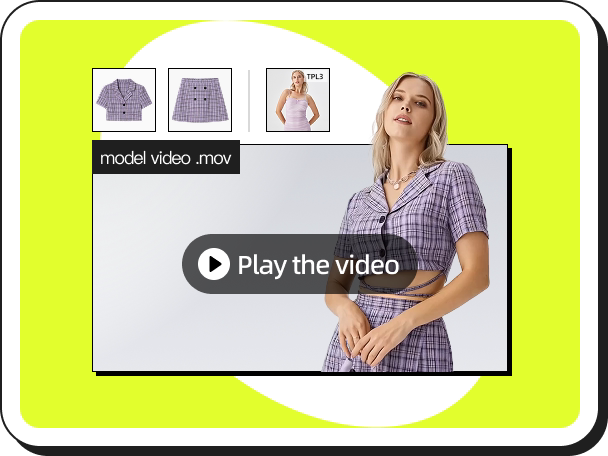
Select the type of clothing:
Tops, Bottoms, Full Outfits, or One-Pieces.
Note: You can only choose one clothing type per task.
Step 3
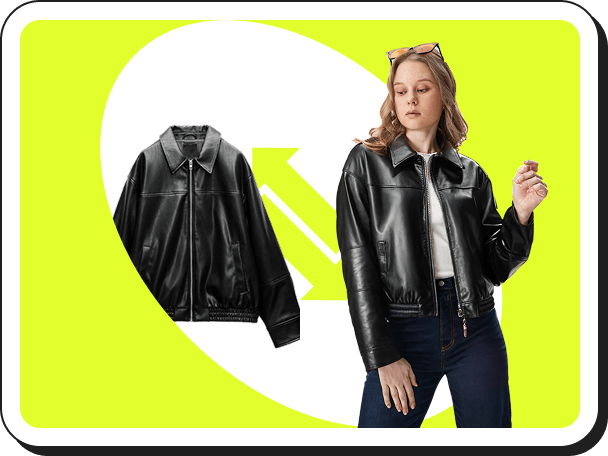
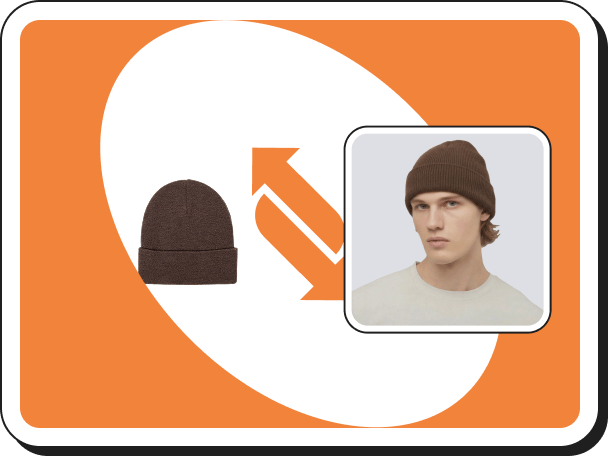
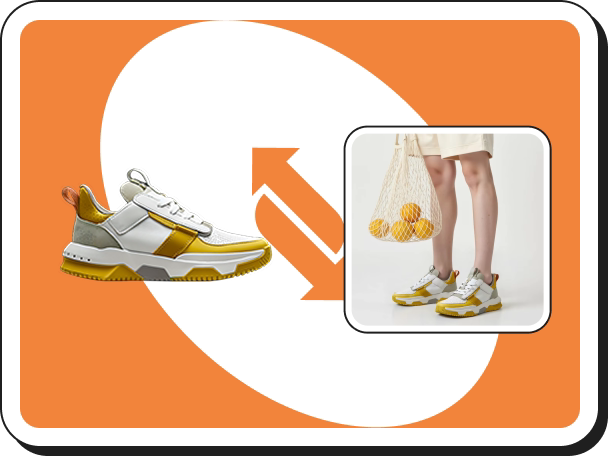
Upload the clothing image and click【Confirm upload】
Note: Please ensure that the clothing image meets the required standards—low-quality images may result in poor try-on effects.
Step 4
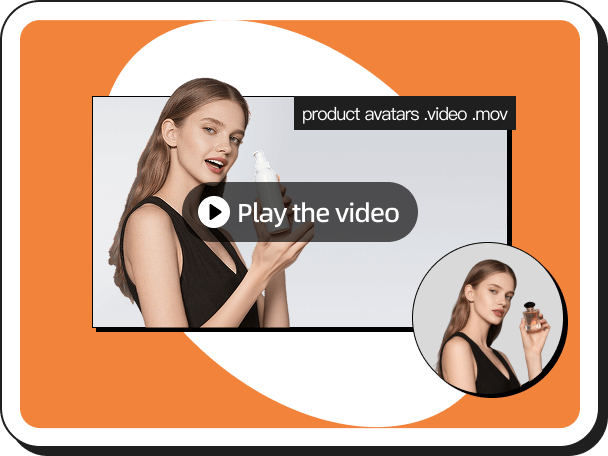
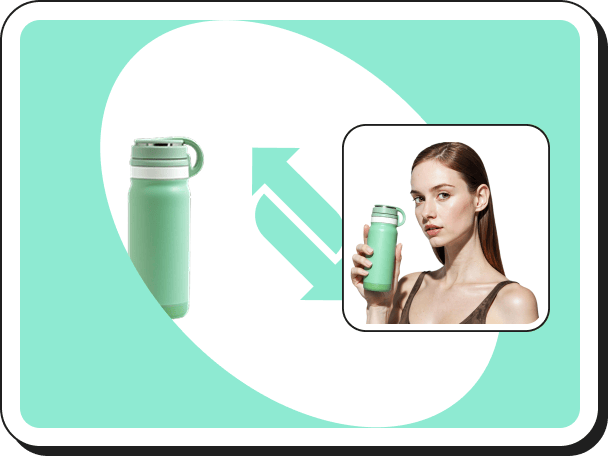
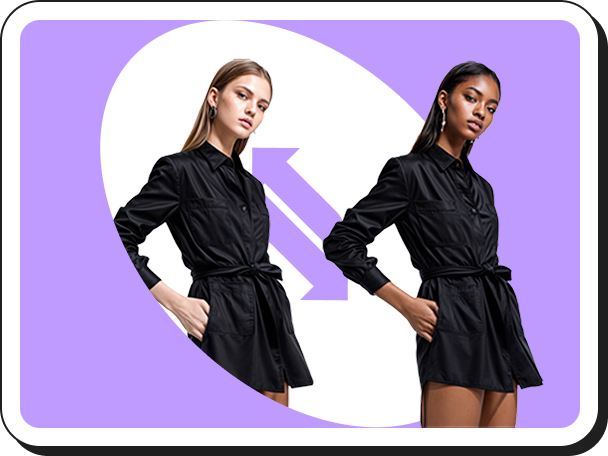
You can choose a suitable model in either “Single” or “Set” mode according to your needs. Members can also use the “Custom” option to upload model images that they own the copyright to or have obtained authorization for (up to 4 poses per upload), then click【Create Now】.
Step 5
Once the image is generated, you can:
- Click【Download】to save it
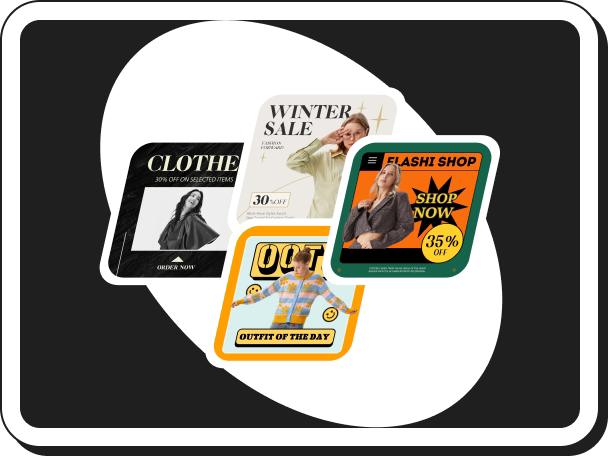
- Or use the shortcut to navigate to other feature pages for further actions.
 Start Creating Now


