


















【Image Translator】Usage Guide
 Pic Copilot Team
Step 1
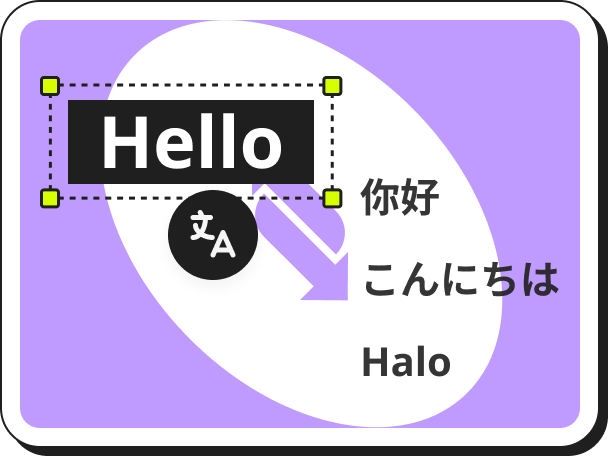
Find the【Image Translator】tool on the Create page and click into it.
Step 2
Upload the images you want to translate.
Note: Members can upload and translate up to 20 images at a time.
Step 3
Select the【Original language】of the image. Currently, the original language only supports【Chinese】or【English】.
Step 4
Select【Translate into】. Then click 【Translate】.
Step 5
- Use the editor on the right to modify the translated text’s size, font, font color, and style.
- Adjust text alignment and apply various text formatting options.
- You can manually reposition and edit the translated text within the editing area.
- In the Translated Text section, choose between:
- Default translation
- AI Translation powered by an AI language model
- If certain areas of the image should not be translated, select those regions and choose “Do not translate” under the Translate or Not option.
Step 6
You can choose to:
- Save your work
- Download the translated images
- Delete images you no longer need
Note: Both Download and Delete support batch processing for efficiency.