





【Al Fashion Models】Usage Guide
 Pic Copilot Team
Step 1
Find the【Al Fashion Models】tool on the Create page and click into it.
Step 2
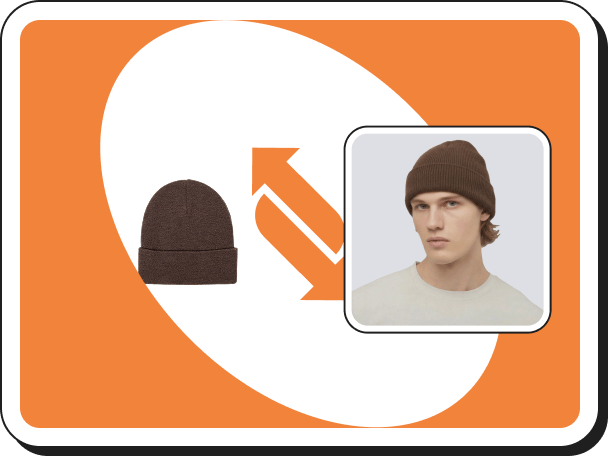
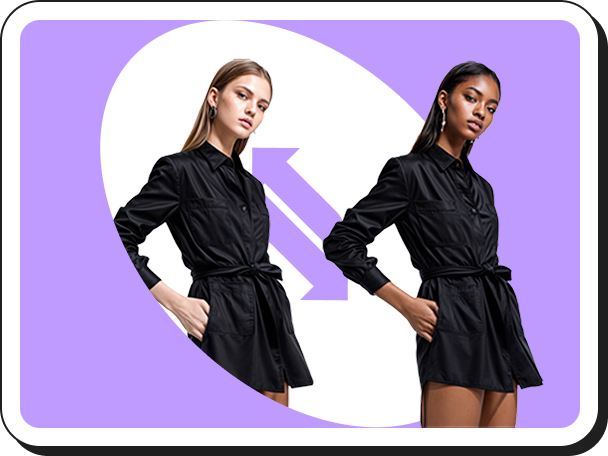
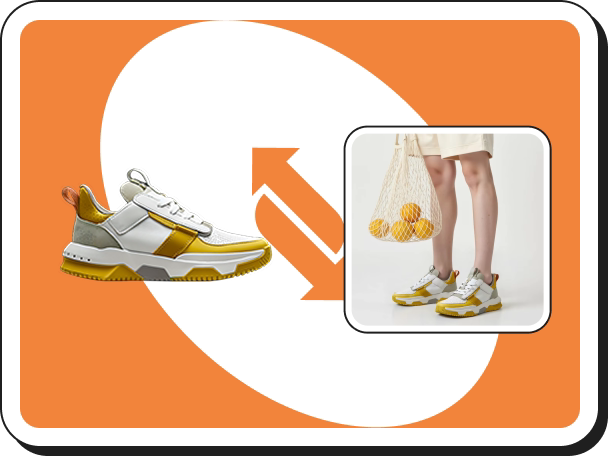
Upload your product photos—either on live models or mannequins.
Note: Images of products that are hanging or laid flat without limbs are not supported.
When you first upload an image, the system will automatically detect and retain the clothing area by default. If needed, you can modify this by entering the Edit Selection Area on the image generation page.
Step 3
Once in the image generation page, the interface is divided into two main sections:
- Image Editing Area
Here, you can replace the uploaded image or fine-tune the selected area.
- Edit Selection Area: Choose which parts of the image to keep or remove.
- Save: Highlight areas to keep in green.
- Remove: Highlight areas to remove in red.
- Clear Selection: Erase all marked selections.
- Complete Selection: Finalize your selections and proceed to image generation.
- Model Area: Select your desired model, hair color, and scene to match your branding or product style.
Step 4
Click【Create Now】.
Step 5
Once the image is generated, view the result in the Image Generation Area.
If satisfied, you can do the following:
- Download: Click the【Download】button to save the current image.
- Enhance Image Quality: Click the【UHD】button to improve the image clarity.
- Generate Video: Click【Fashion Reels】to turn the current image into a video.
- Change Background: Click【Change Background】to apply a different background to the current image.
Step 6
For batch operation, please find【History】-【Batch operation】on the left side.