


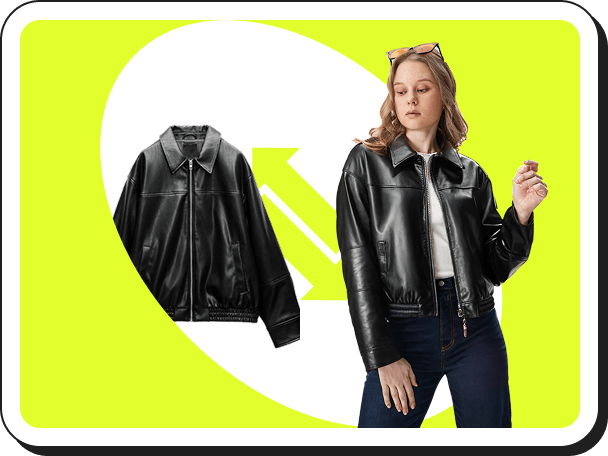
 虚拟试衣
虚拟试衣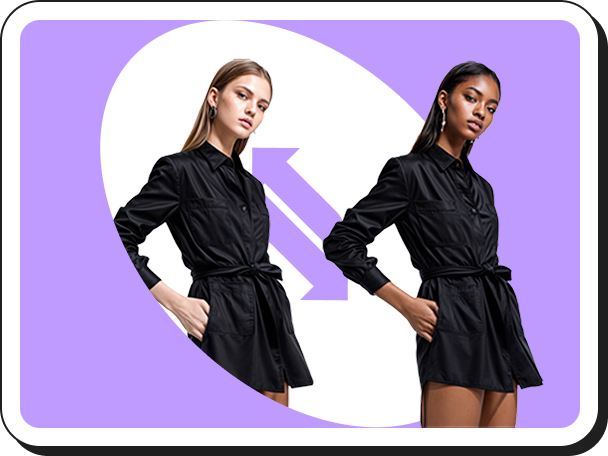 模特换肤
模特换肤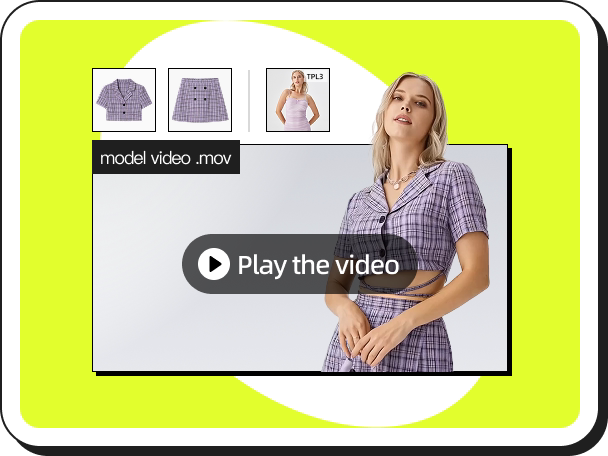 AI模特视频
 手持商品视频
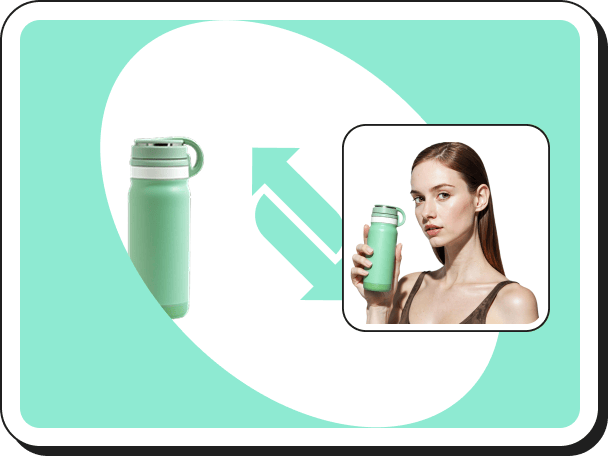 手持商品图
手持商品图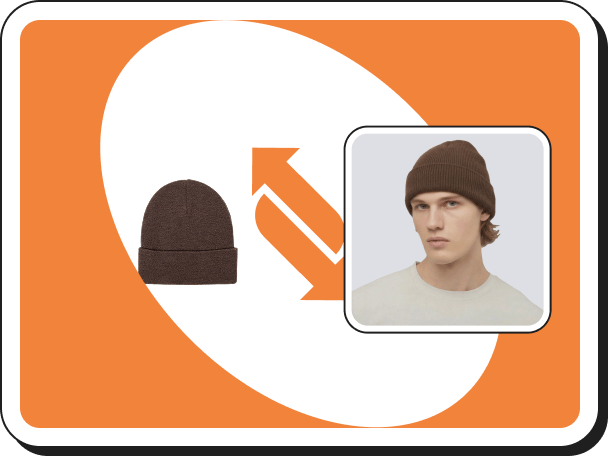 AI饰品穿戴
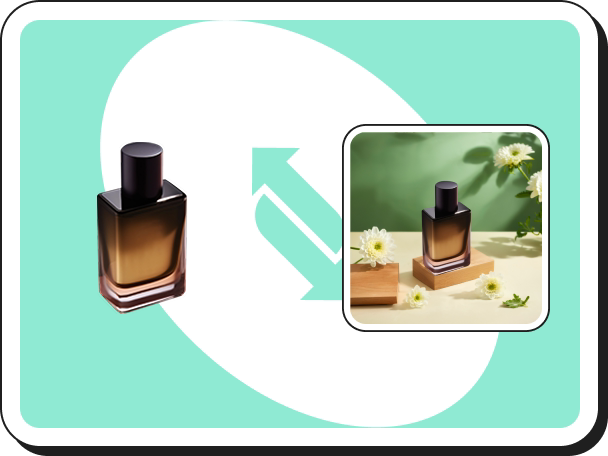 背景图生成
背景图生成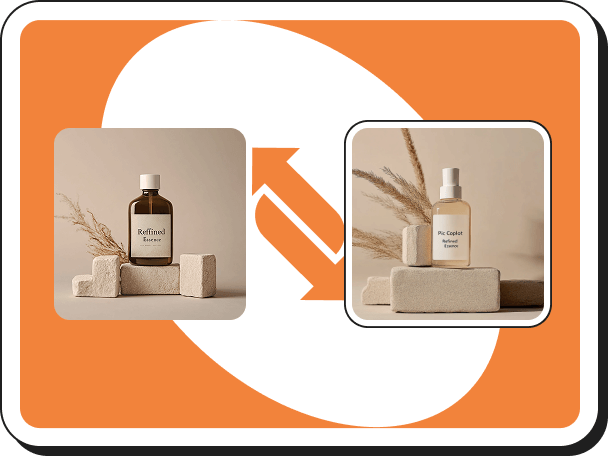 背景复刻
背景复刻 去水印工具
去水印工具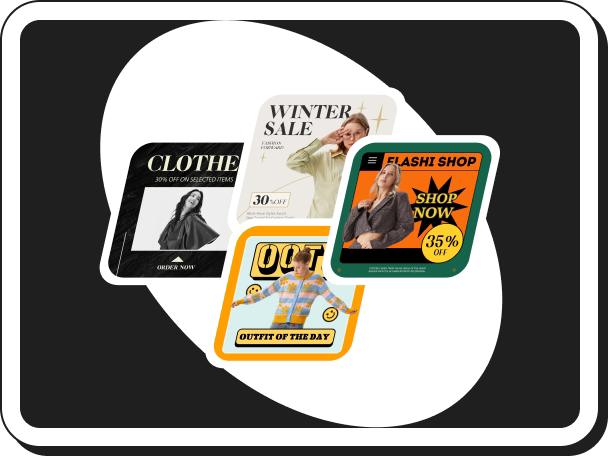 营销图生成
营销图生成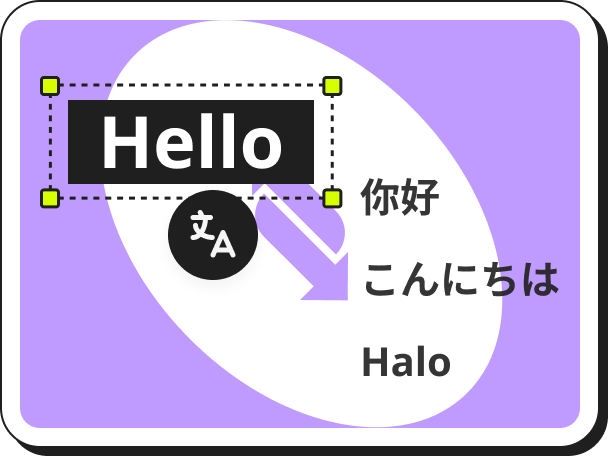 图片翻译
图片翻译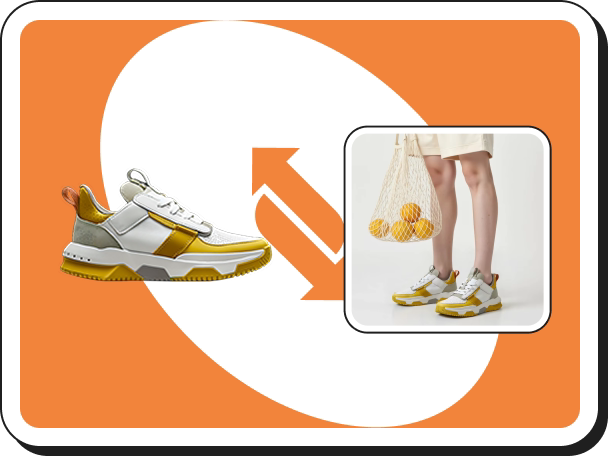 虚拟试鞋
虚拟试鞋 AI口播数字人
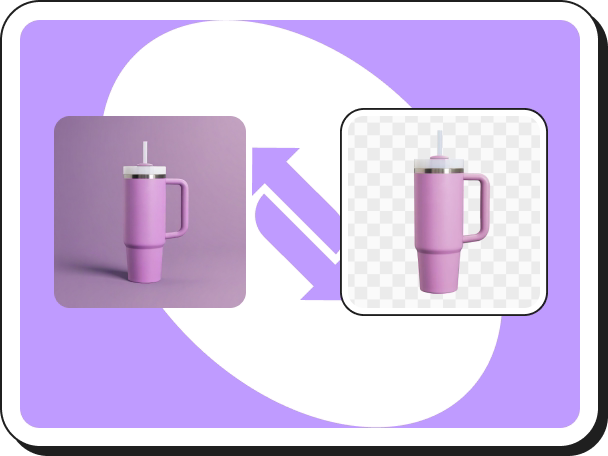 一键抠图
一键抠图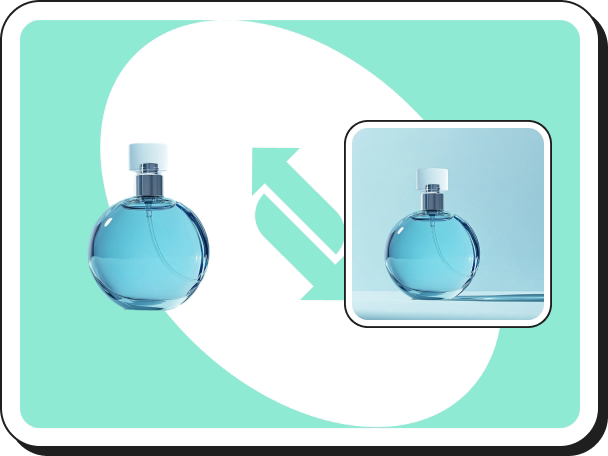 AI阴影生成
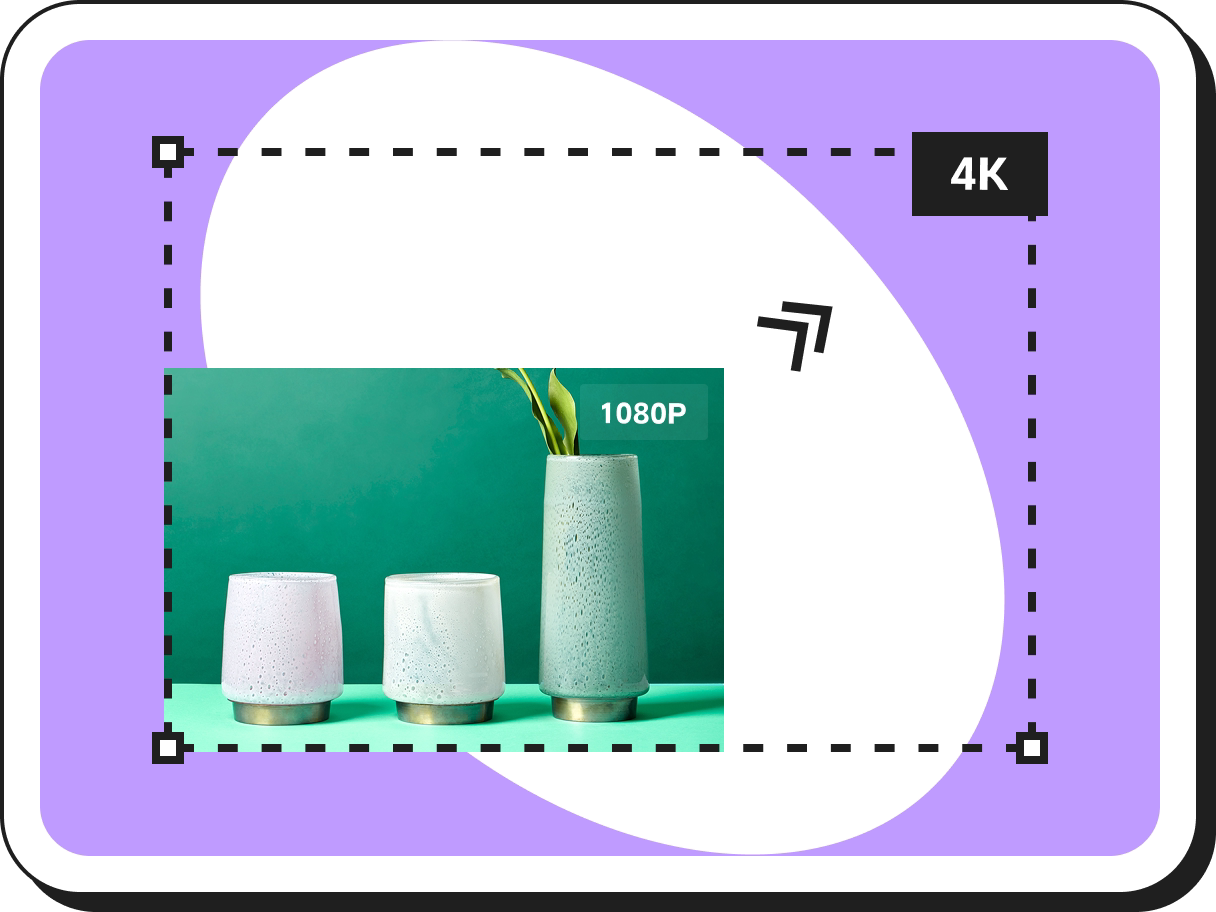 无损改尺寸
无损改尺寸 图片变清晰
图片变清晰AI Image Tools Guide to Background Removal, Upscaling, Watermark Removal & 10+ More Features — 2026
 Pic Copilot Team
PicCopilot offers a comprehensive suite of AI image editing tools for e-commerce product photos. From background removal to HD upscaling, these tools help you create professional product images without expensive photo editing software. All tools are accessible from the "More AI Tools" section of your dashboard.
Technical Specifications
Metric | Detail |
Supported Formats | PNG, JPG, WebP |
Max File Size | 50MB per image |
Recommended Browser | Google Chrome (Desktop) |
Available Image Tools Overview
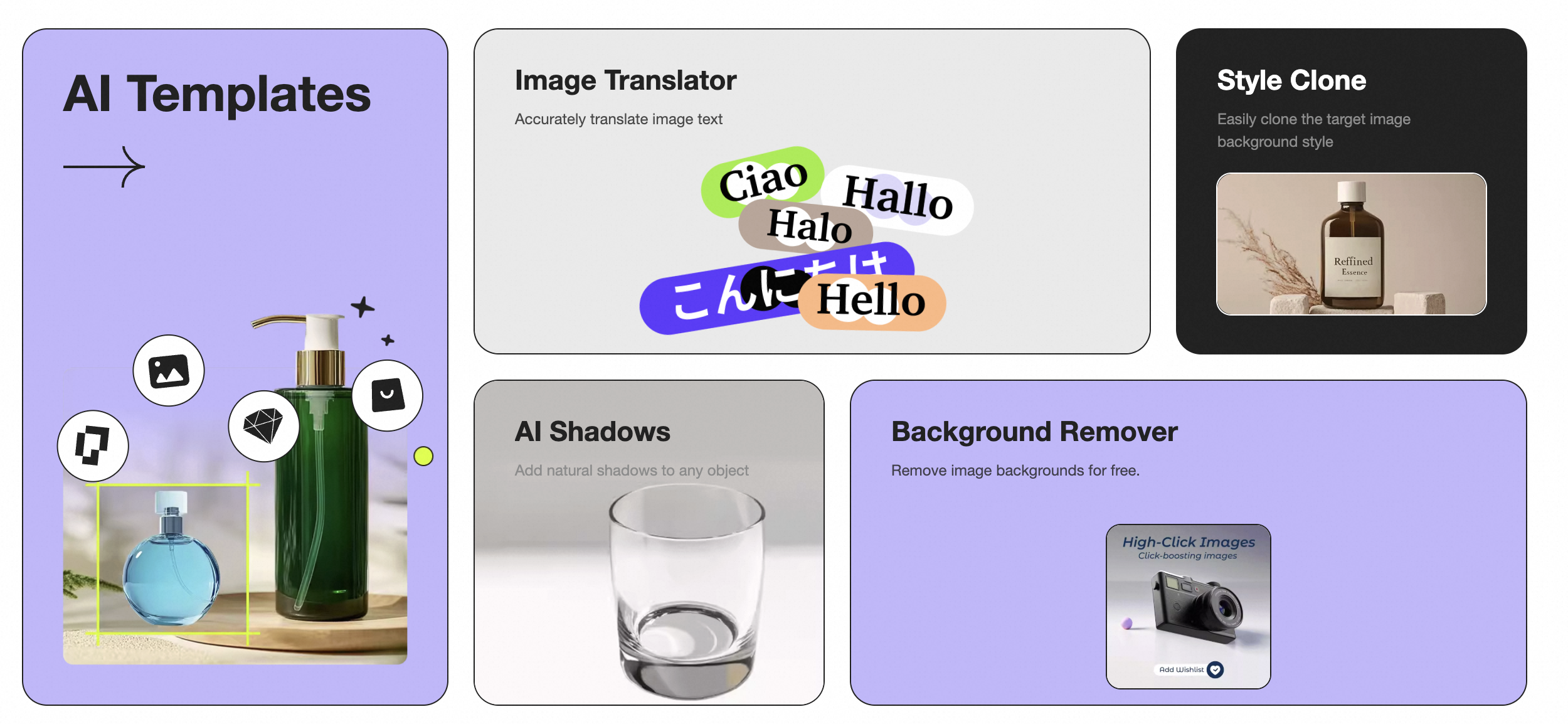
- Background Removal / White Background: Automatically detects and removes the original background, replacing it with a clean white backdrop or transparent PNG layer.
- HD Image Upscaler: Enhances image resolution and clarity. Ideal for low-quality supplier photos.
- AI Shadow Generation: Adds realistic, directionally accurate shadows to products on white/transparent backgrounds.
- Watermark Removal: Identifies and erases third-party watermarks while seamlessly blending the underlying content.
- Marketing Image Generator: Places your product into ready-to-use promotional banners and social media templates.
- Image Translation: Automatically translates text embedded within an image into your target language while preserving the original typography and layout.
Pro Tips for Batch Processing
- Use Dedicated Batch Tools: For large volumes, do not process images one by one. Use the specific Batch Background Removal and Batch Watermark Removal modules located in the sidebar.
- Batch Downloading: If you have generated hundreds of images (e.g., skin tone adjustments), go to your Asset Library, use the shift-click method to select multiple files, and download them as a single ZIP file to save time.
🚀 Ready to edit your products? Open PicCopilot Image Tools
Frequently Asked Questions
Why is the Download button not responding after I process an image?
This is usually a local browser conflict. To resolve this:
- Ensure you are using Google Chrome.
- Disable any active Ad-blocker extensions, as they can misidentify the download script as a popup.
- As a quick workaround, right-click the processed image and select "Save Image As...".
How do I bulk delete images from my Asset Library?
Currently, the Asset Library supports individual deletion to prevent accidental data loss. If you need to clear thousands of legacy images, please email support to request a backend account flush. A native batch-delete UI feature is scheduled for a future update.
What happens when I reach my daily tool usage limit?
Free plan users have strict daily limits on generation and upscaling tools to manage server load. Check the indicator on the tool's interface for your remaining uses. To remove these limits and unlock batch processing, upgrade to a Pro or Pro+ subscription.