





【AI Backgrounds】Usage Guide
 Pic Copilot Team
Step 1
Find the【AI Backgrounds】tool on the Create page and click into it.
Step 2
Click to upload your product image.
Note:
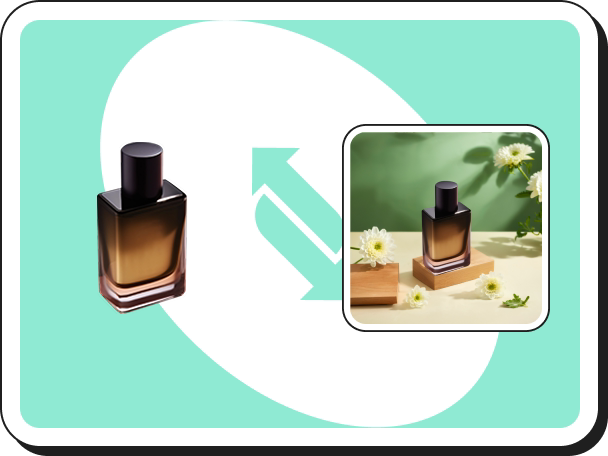
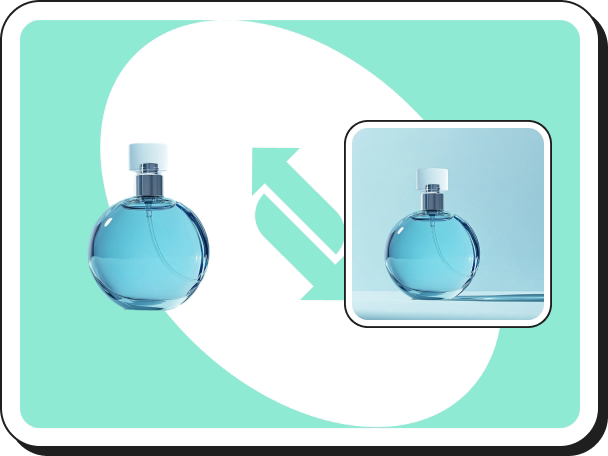
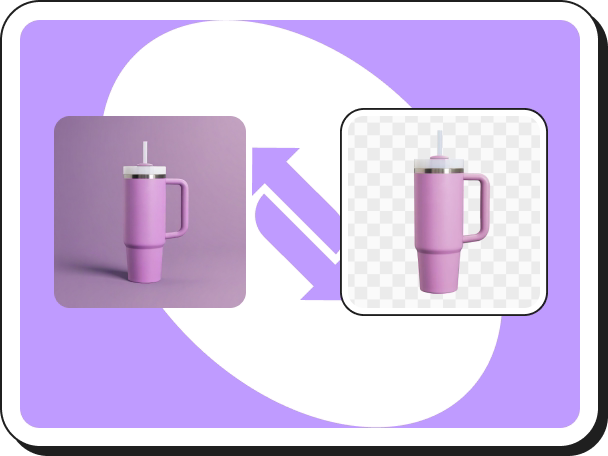
- Don’t worry if your image has a background—our tool can automatically remove it.
- If the automatic background removal isn’t perfect, you can select Manual Remove Background. You can also remove watermarks manually if needed.
Step 3
The background generation page is divided into four areas:【Upload Product Area】, 【Image Size Selection Area】, 【Scene Selection Area】and【Image Generation Area】.
- We provide a range of standard image resolution such as 1080x1080, 1200x628, and 750x1000. If you have other image resolution requirements, you can input your desired image resolution!
- Select the scene template ("Recommended Scenes" or "Custom Scenes") and adjust the product
- Scene template: Simply click on a template, and then adjust the size, position and direction of the product in the【Image Generation Area】.
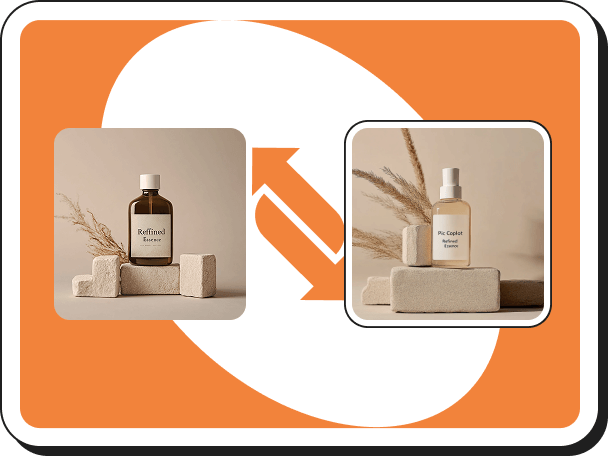
- Reference Image: Select a reference image template, place and resize your product, then adjust the background size as needed.
- Custom Scenes: Upload your own reference image for a scene. After positioning and scaling your product, resize the background and select the level of scene variation.
Note:
- Scene images should be clear and free of other products for optimal results.
- Ensure that uploaded scene images meet the required standards.
- Add Elements (Optional): Click the【Add Elements】button in the top right corner to add decorative items such as booths, plants, etc., to enrich the content of the scene.
- Click【Create Now】
- Download and Optimize: If you are satisfied with the generated result, you can click【Download】to save the image, or click【UHD】to enhance the image clarity.
Note: All generated records can be viewed in “History.” The left side supports “Batch operation,” allowing you to download or delete multiple items at once.