














【Remove Background / White Background】Usage Guide
 Pic Copilot Team
Step 1
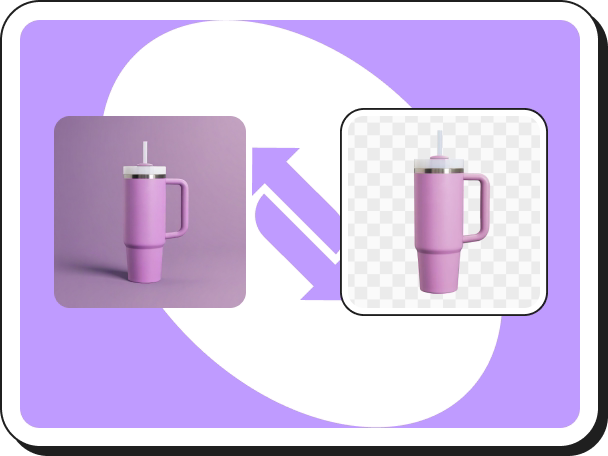
Find【White Background】on the Create page and click into it.
If you want to perform batch operations, click the【Batch Remove Background】tool to remove backgrounds.
Step 2
- Upload an image (maximum size: 10MB).
- Once uploaded, you’ll see a preview showing the background removal effect.
Step 3
If you’d like to fine-tune the background removal:
- Click【Manually Remove Background】to enter manual editing mode.
- In manual mode, you can use tools like:
- Brush: Mark areas to keep or remove.
- Eraser: Manually remove specific sections.
- Fix: Refine edge details and corrections.
- After adjustments, click【Confirm Upload】. The AI will process the image and take you to the results page.
Step 4
On the results page, you’ll see your image with the background removed. Here you can:
- Download: Save the processed image to your device.
- Replace Color: Instead of a transparent background, you can choose a solid color background.
- Change Image: Click the image in the top-left corner to upload and process a different image.
- Add AI Shadow (Optional): You can preview the added AI shadow on the right side, and choose to either download the image directly or click【Try more】to go to the AI Shadow tool for more options.