





【AI Templates】Usage Guide
 Pic Copilot Team
Step 1
Find the【Al Templates】tool on the Create page and click into it.
Step 2
Click【Upload image】to open the image upload interface and upload your product images.
Note:
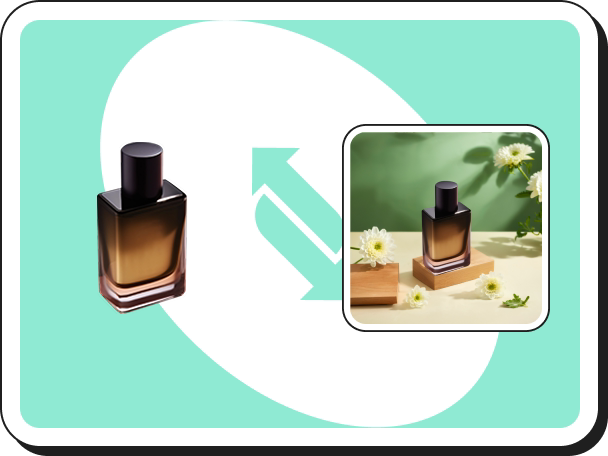
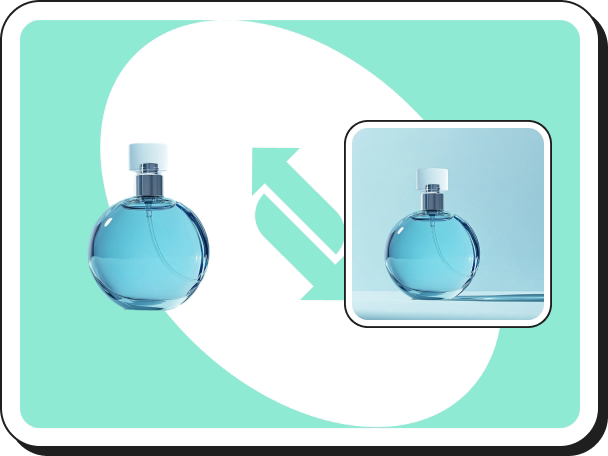
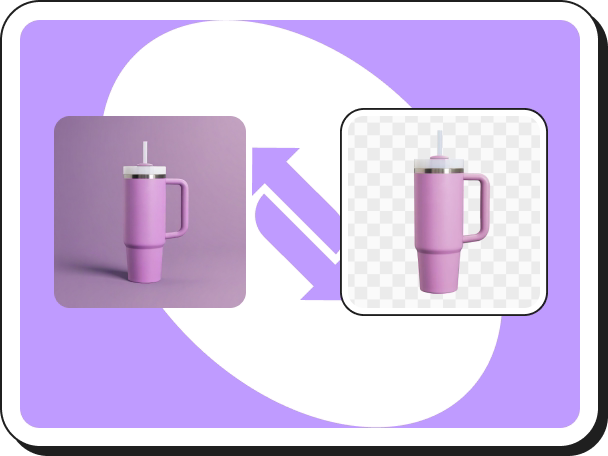
- Don’t worry if your image doesn’t have a white background—the system will automatically detect and remove the background for you.
- If needed, you can also choose Manually Remove Background for further editing.
Step 3
Once your images are uploaded, click【Confirm upload】to proceed to the image generation page.
Step 4
Edit Your Generated Content
- Content Editor: Click on any text to adjust the font, font size, color, or style of your marketing message.
- Assets: Select and customize stickers to match your desired style and content.
- Logo Replacement: If your template includes a logo placeholder, upload your own brand logo (supported formats: PNG, JPG) to replace it.
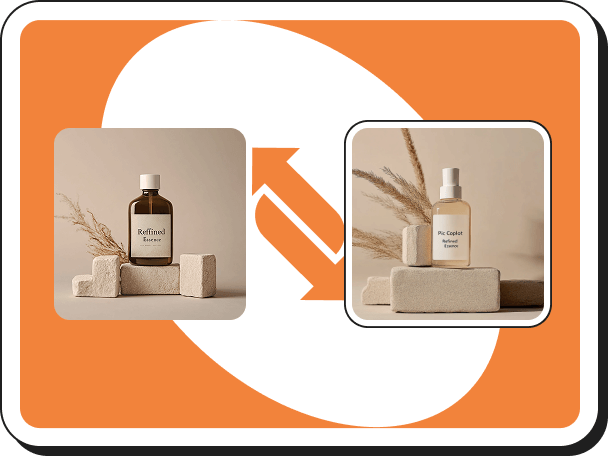
- Regenerate (Free): Not satisfied with the result? Click Regenerate, or choose a different template under Templates, make adjustments, and then click Regenerate again.
Note:
- In the preview area, drag the edges of the product image to resize.
- Use the rotation control to rotate the product 360°, or input a specific angle in the settings panel on the right.
Step 5
View, Edit, or Download Your Images.
All generated images are saved in【History】, where you can:
- View past creations
- Delete or download images using【Batch operation】
- Click【Edit again】to return to the image generation page for further changes
Note: Pcoins are only deducted when you click【Download】after confirming you’re happy with the result.