












How to Generate E-Commerce Product Listing Pages — 2026
TL;DR: If your generation gets stuck or the download button fails, disable your browser's ad-blocker, ensure you are using the latest version of Google Chrome, and verify your internet connection is stable.
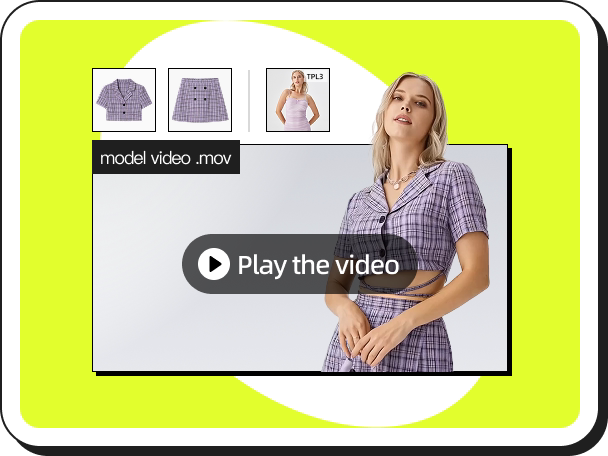
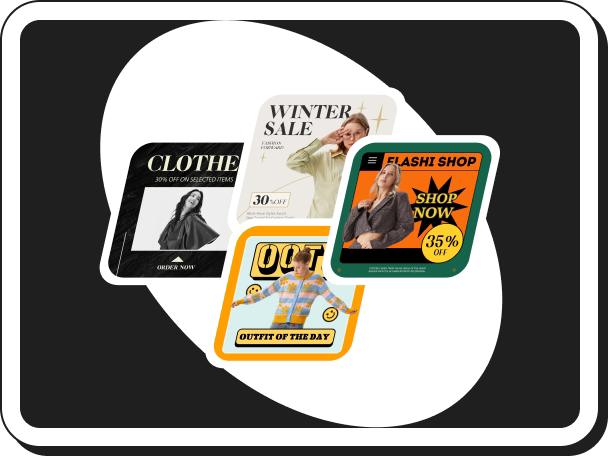
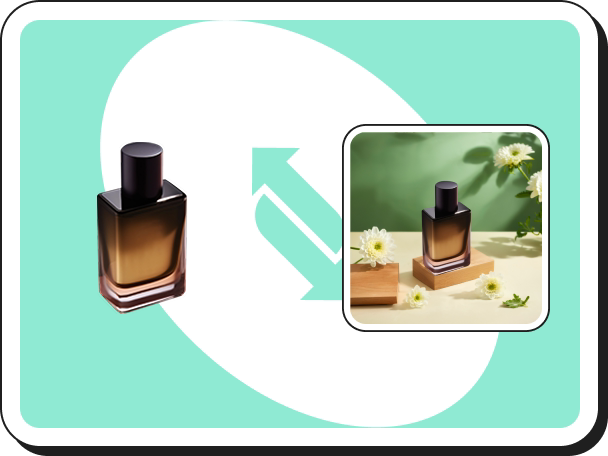
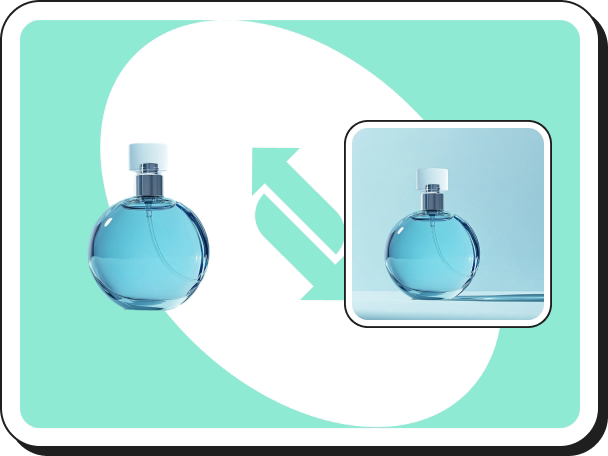
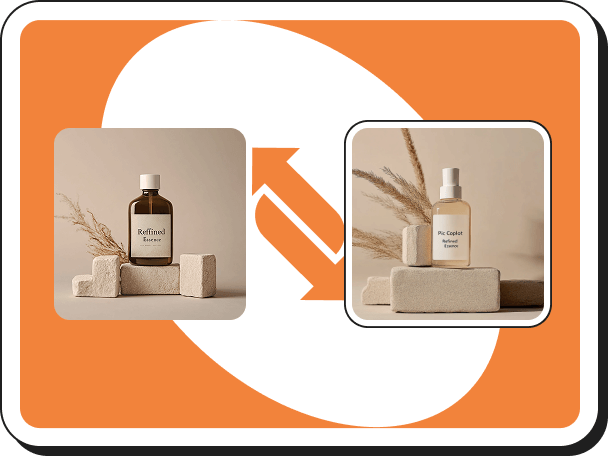
PicCopilot's Product Listing Page tool generates complete e-commerce detail pages with layouts, product images, and copy — ready to upload to your store. Upload your product photos, provide basic product information, and the AI creates a professional listing page in minutes.
Technical Specifications (At a Glance)
Metric | Detail |
Average Generation Time | 1–3 minutes |
Supported Platforms | Shopify, Amazon, AliExpress, Etsy, eBay |
Daily Limit | Limited (Free) / Unlimited (Pro+) |
How to Create a Product Listing Page
- Navigate to the Product Listing Page tool from your dashboard.
- Upload product images — Use multiple high-quality product photos showing different angles.
- Enter product details — Input the product name, description, key features, and specifications.
- Select a template/style — Choose a layout that fits your target platform and brand identity.
- Click Generate and wait 1–3 minutes for processing.
- Edit and download — Use the built-in editor to make layout or text adjustments, then download the final high-resolution assets.
![[📸 Image Placeholder: Screenshot of the Product Listing Page editor interface, highlighting the template selection and download button]](https://cdn.piccopilot.com/product/resource/18ec2cf181de4279a8d1d2148e185be0.png "[📸 Image Placeholder: Screenshot of the Product Listing Page editor interface, highlighting the template selection and download button]")
Pro Tips for Best Results
- Maintain Image Consistency: Ensure all input product photos share the same aspect ratio and have clean backgrounds. This prevents the AI from generating awkward white spaces or misaligned grids.
- Provide Detailed Prompts: The more specific you are in the "product details" step, the better the AI-generated sales copy will convert. List specific materials, dimensions, and unique selling points.
🚀 Ready to scale your e-commerce store? Open PicCopilot Product Detail Page
Frequently Asked Questions
Why is my generation stuck on "In Progress" for a long time?
Complex listings with many images require heavy server processing. If the progress bar hasn't moved for more than 10 minutes:
- Do not close the tab immediately; refresh the page to check for status updates.
- Verify your network stability.
- If it is stuck for over 30 minutes, the task encountered a server timeout. Please start a new generation (Pro+ users automatically receive priority rendering queue access).
Why is the Download button not working after generation?
This is typically caused by local browser restrictions. Disable any active ad-blocker extensions which might block the download popup script. Alternatively, you can right-click the generated image and select "Save Image As...", or switch to Google Chrome.
Why won't the built-in design editor load for me?
The interactive editor requires modern browser rendering engines. Ensure you are using the latest version of Google Chrome, Firefox, or Edge. Safari users may experience limited drag-and-drop compatibility.
 今すぐ作成を開始


